Welcome to your Flow POS Setup Guide
This guide will walk you through the simple steps to set up your Flow POS app and connect it to your payment terminal.
Step 1: Set Up Your Payment Profile
Before you can start using your terminal, you’ll need to create your payment profile in the Flow POS app. This ensures your transactions are processed correctly and securely. Once your payment profile is set up, you can move on to adding your location.
Step 2: Add Your Location
Now that your payment profile is set up, the next step is to add the location of your business. Once your location is added, you can move onto adding and pairing your terminal.
Step 2: Add Your Terminal
After your payment profile and location set up is complete, the next step is to add your terminal to the Flow POS app.
Setting up your Payment Profile
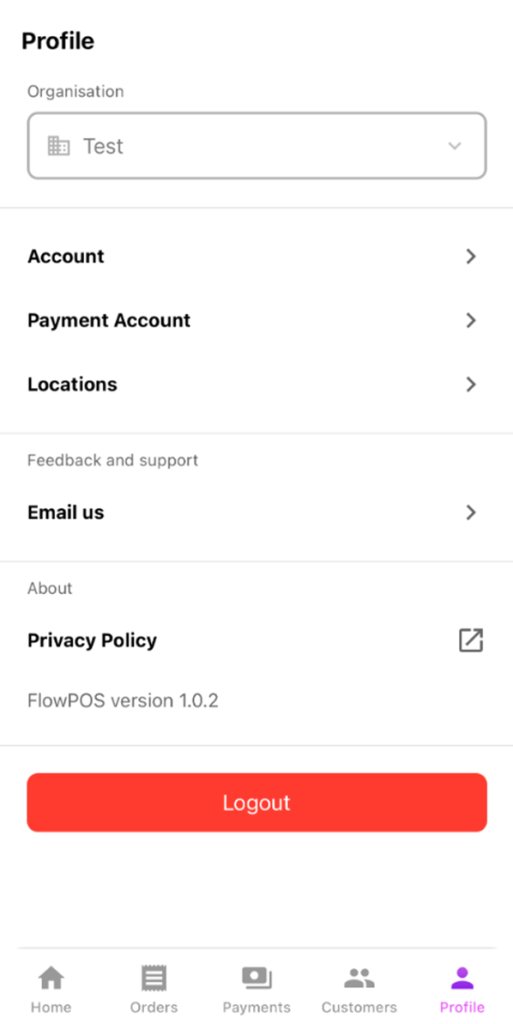
Once you’ve downloaded the Flow POS app from your device’s app store, open the app and tap Profile in the bottom-right corner. On the Profile page, you’ll see several options – select Payment Account to begin setting up your payment details.
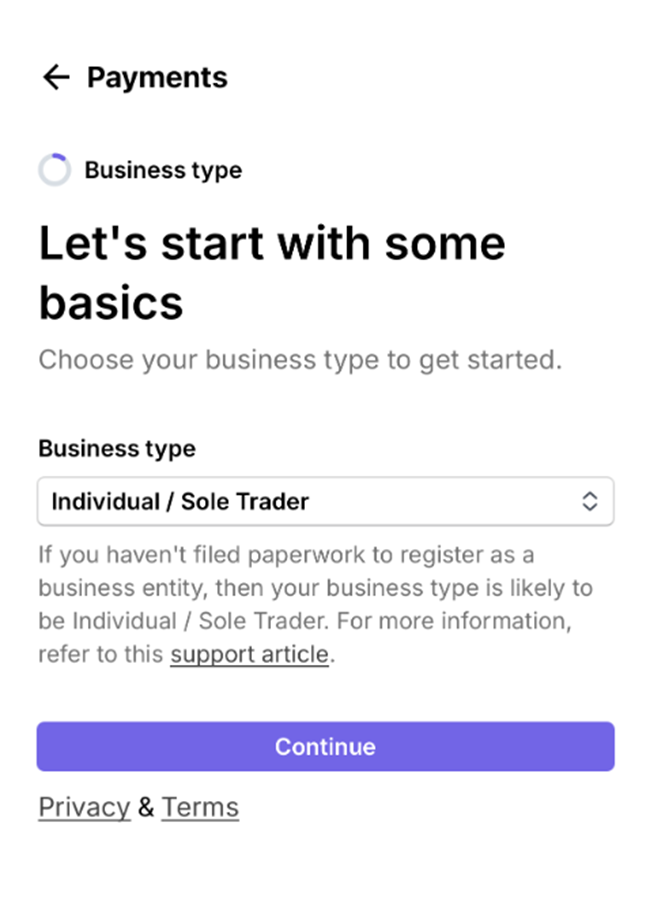
Start by selecting your business type from the drop-down menu. You can choose from the following options: Individual/Sole Trader, Company, or Non-Profit. Once you’ve made your selection, tap Continue to proceed.
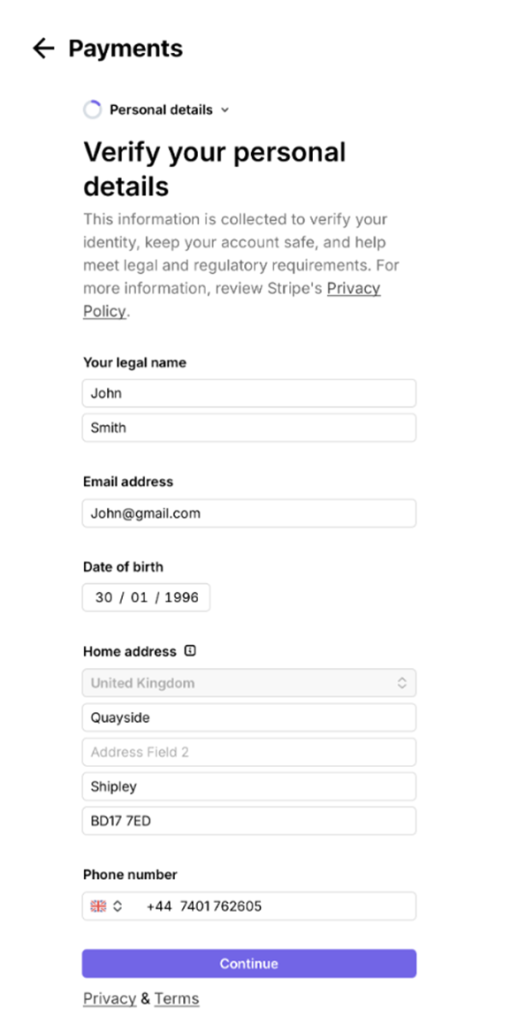
Next, fill out your personal details. This information is required to verify your identity and keep your account secure. If you’d like to learn more about how your data is handled, you can review our Privacy Policy by selecting the link provided.
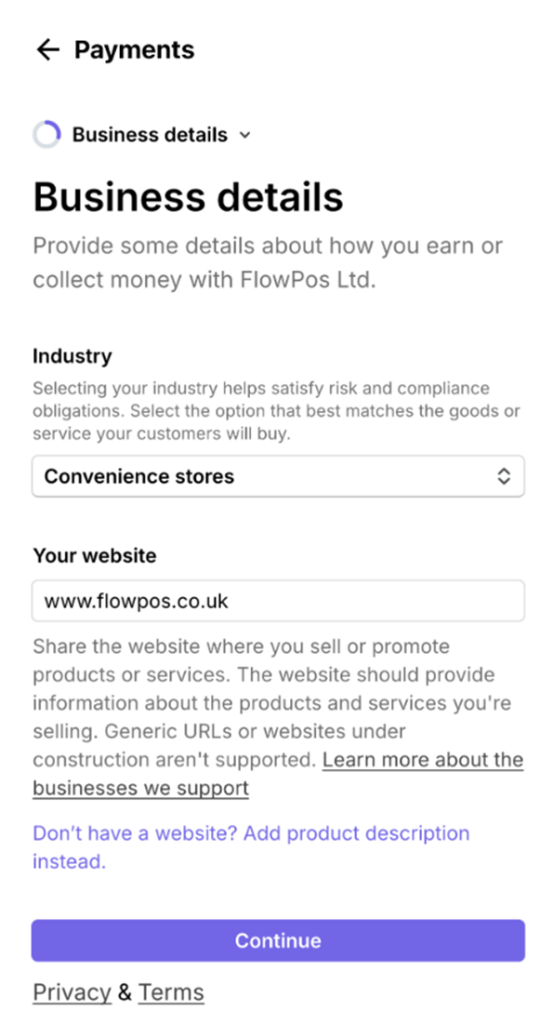
Now, enter your business details. In this section, provide your business website address and select your industry type from the available options. This helps us tailor your account to your business needs.
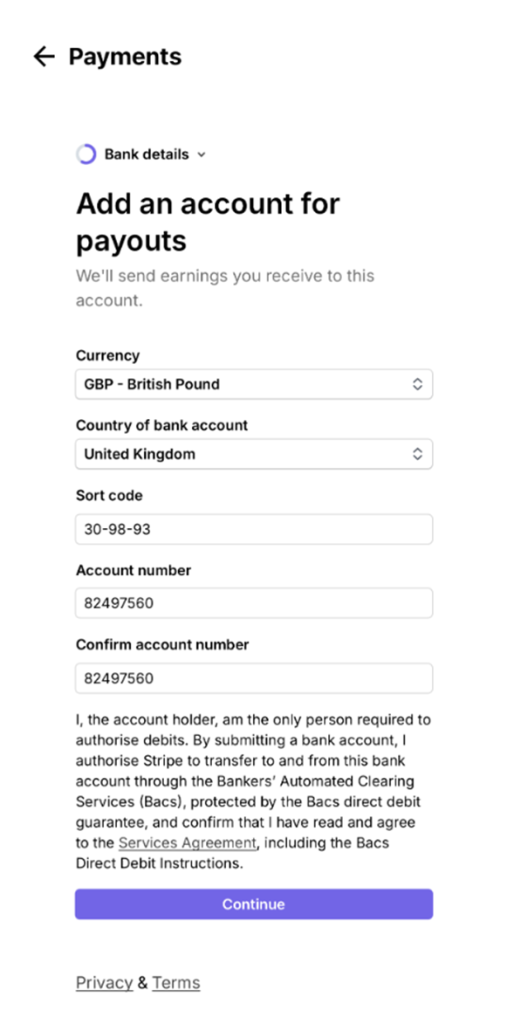
The next step is to add your bank details. These will be used to deposit the earnings you receive from your transactions. Ensure your bank details are accurate to guarantee smooth and timely payouts.
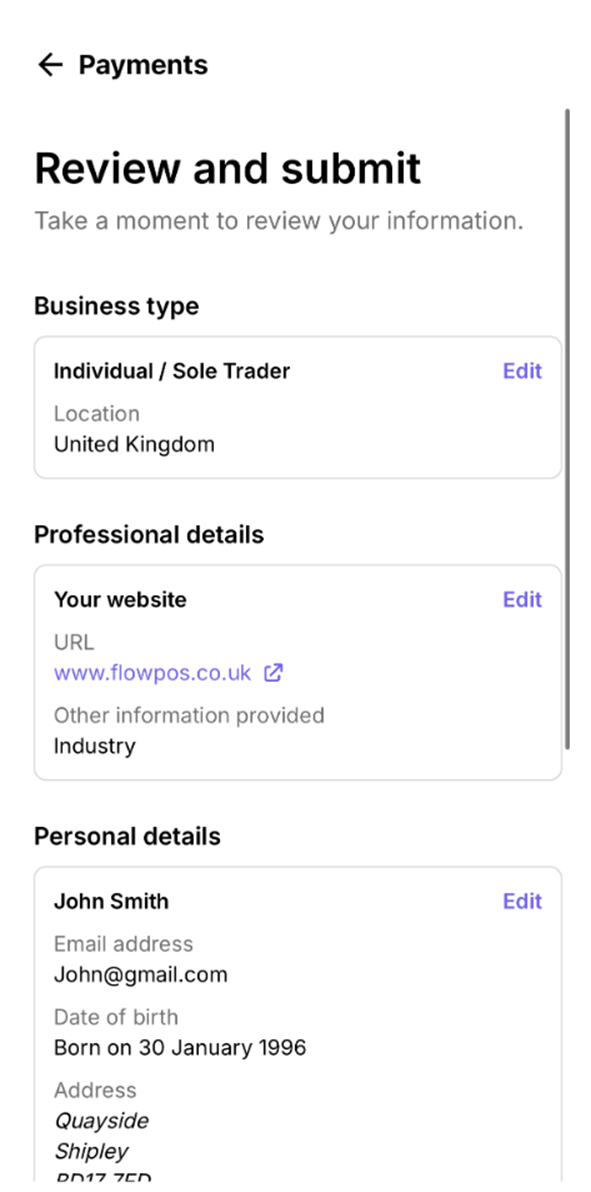
Finally, review all the information you’ve entered to ensure it is correct, then submit your details. Your payment profile is now on boarded.